
In order to configure your email on Android 8.x.x phone, follow this instruction:
1. Enter Email on the main screen of your Android phone.
2. Select Other and insert your full email address and password for it in the appropriate fields: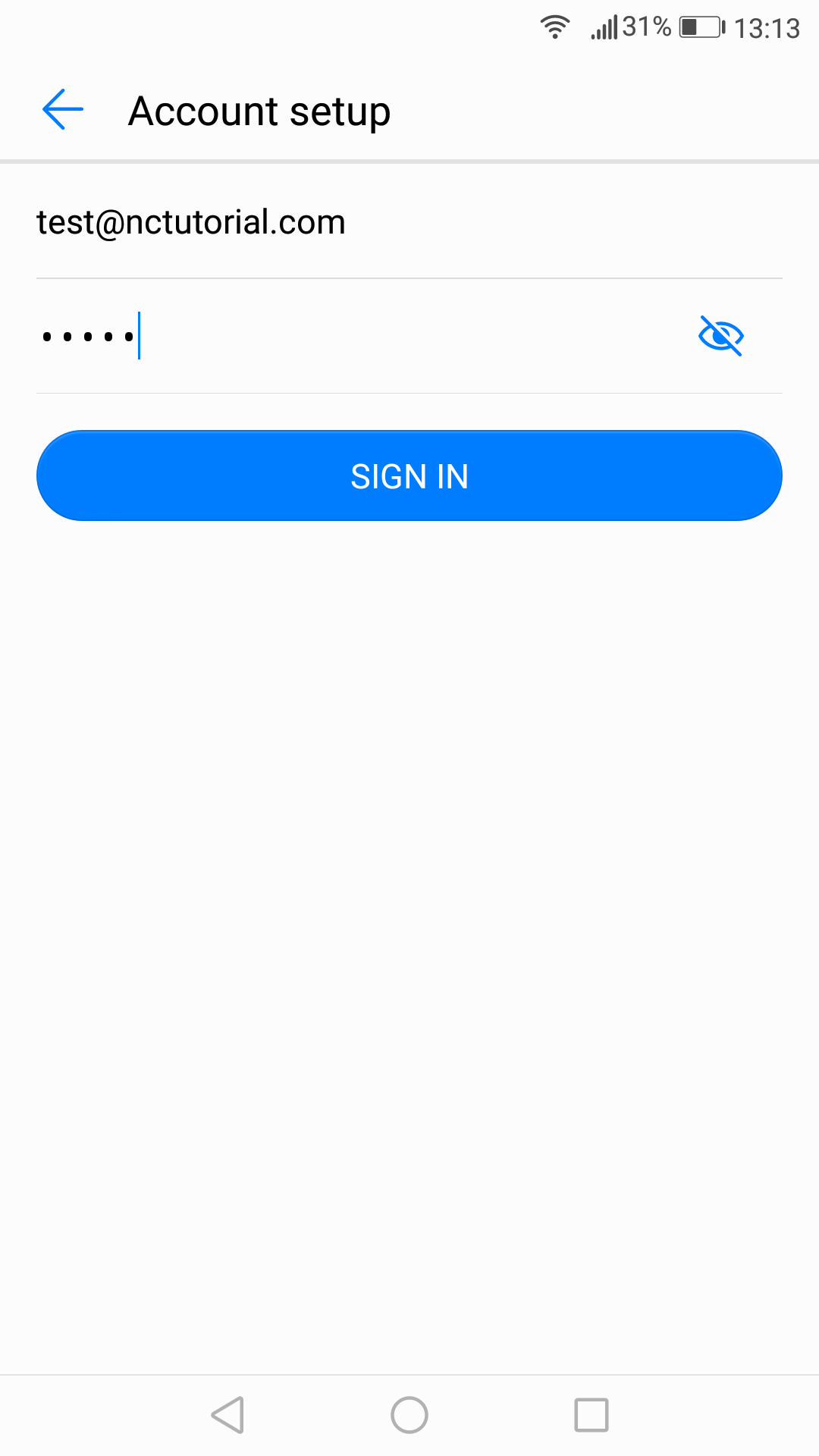
Click Sign in.
3. Select protocol type: IMAP or POP3. We advise you to use IMAP: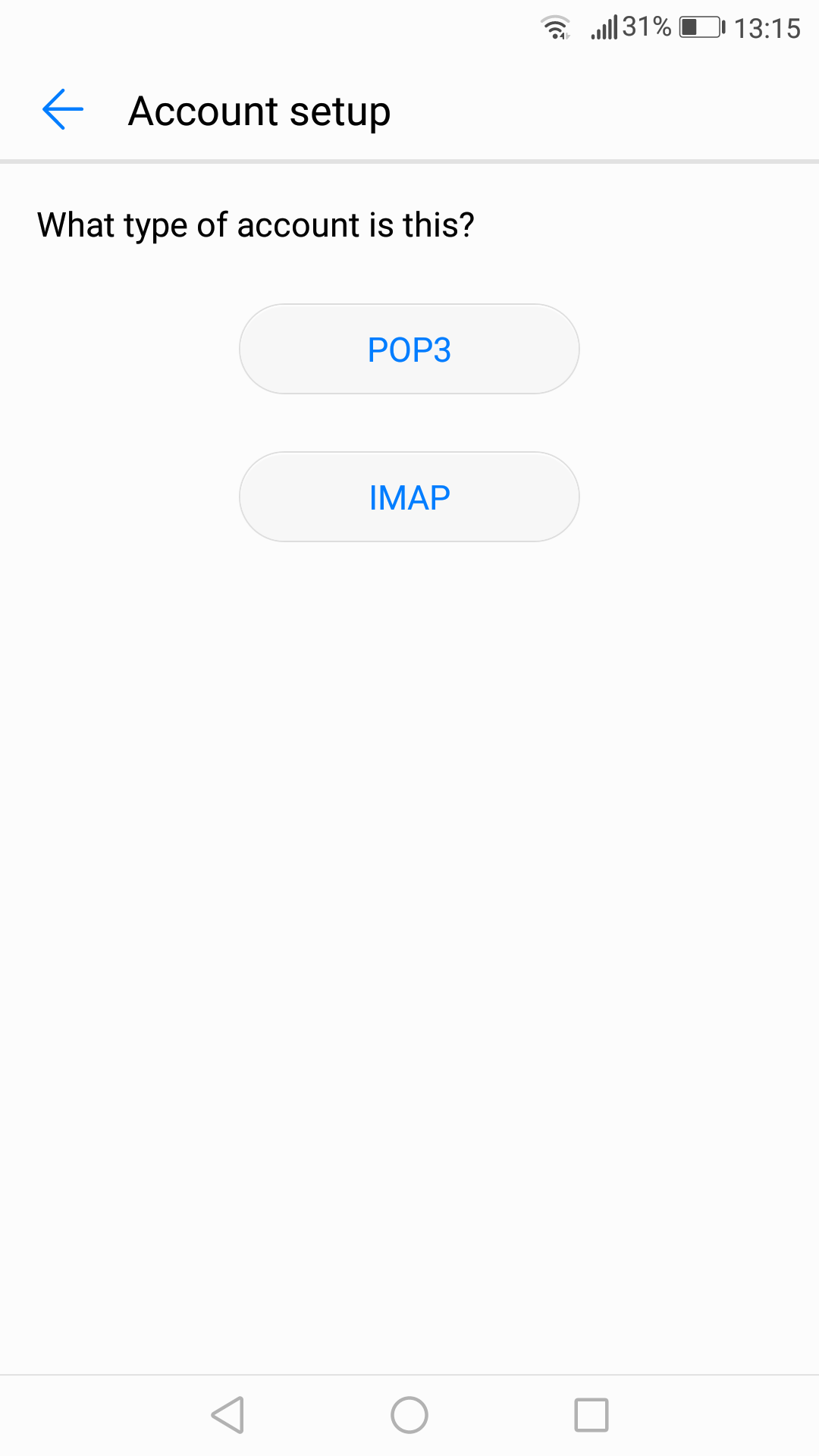
4. If you choose the IMAP protocol, you will need to indicate the following fields:
- Email address, username, and password should have been already filled in the corresponding fields.
- Server:server your account is hosted on
If you want to use a Secure Sockets Layer connection:
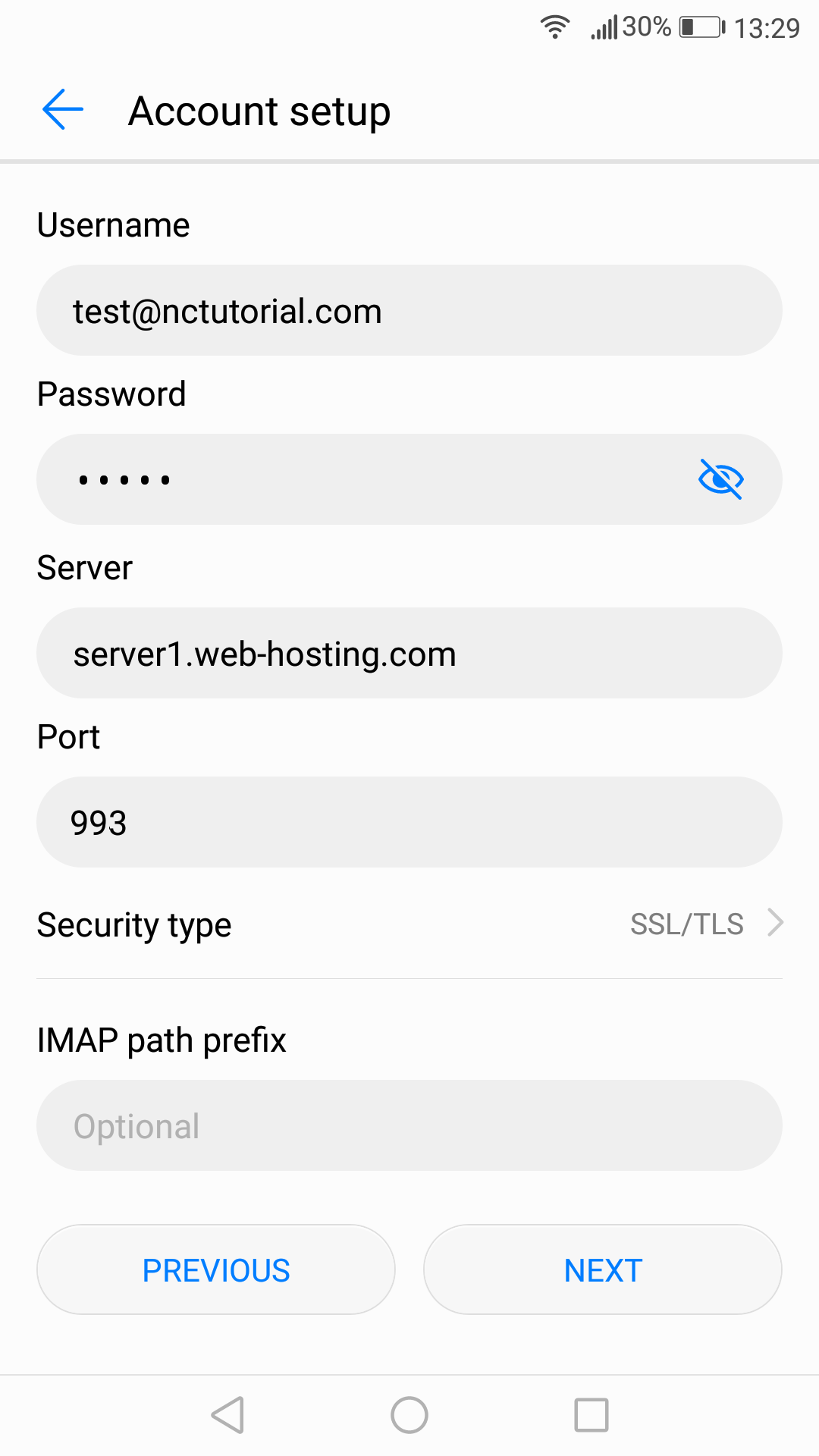
- Port: 993
- Security type: SSL/TLS
If you do not want to use a Secure Sockets Layer connection:
- Port:143
- Security type: None
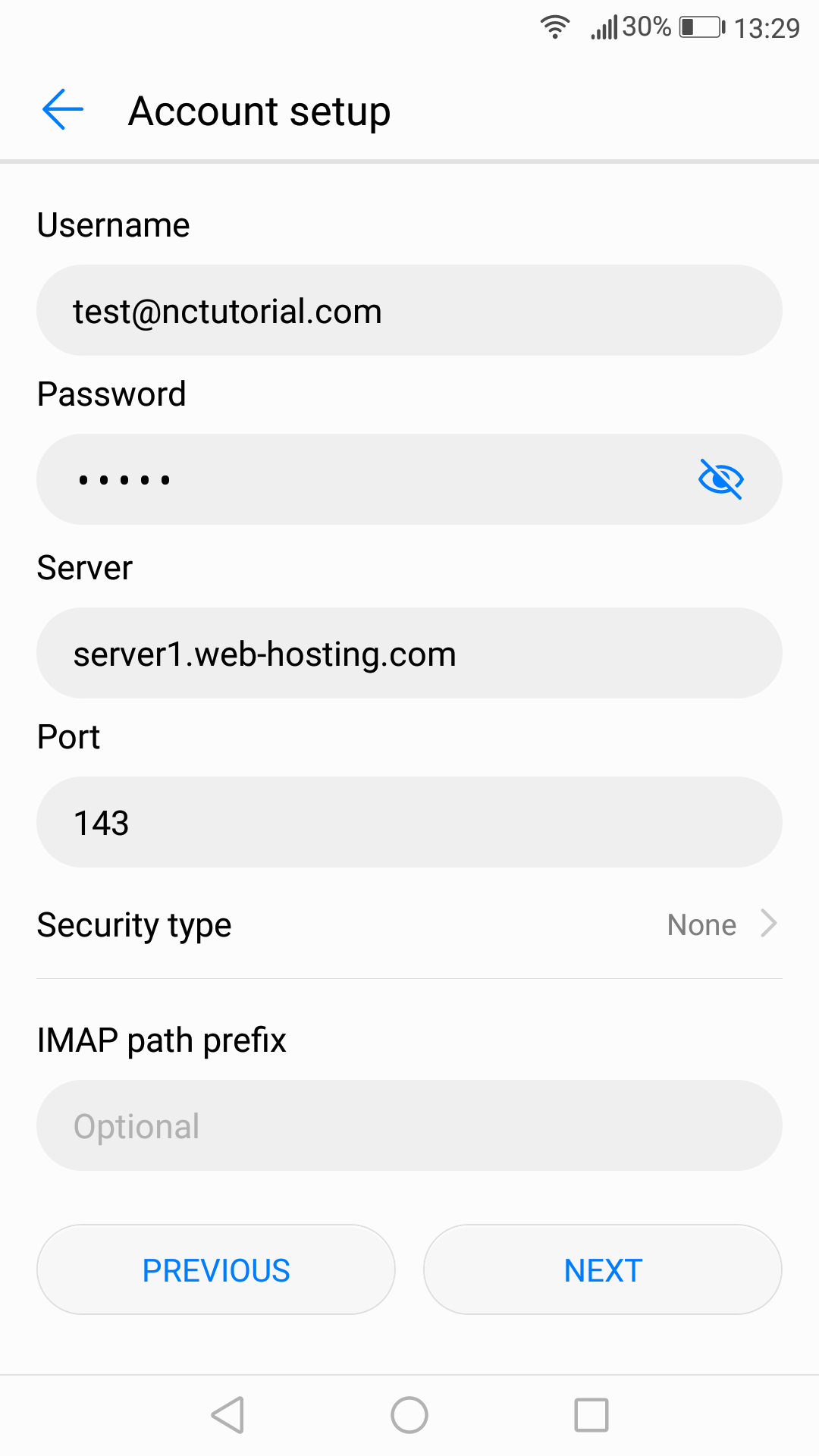
Click on Next.
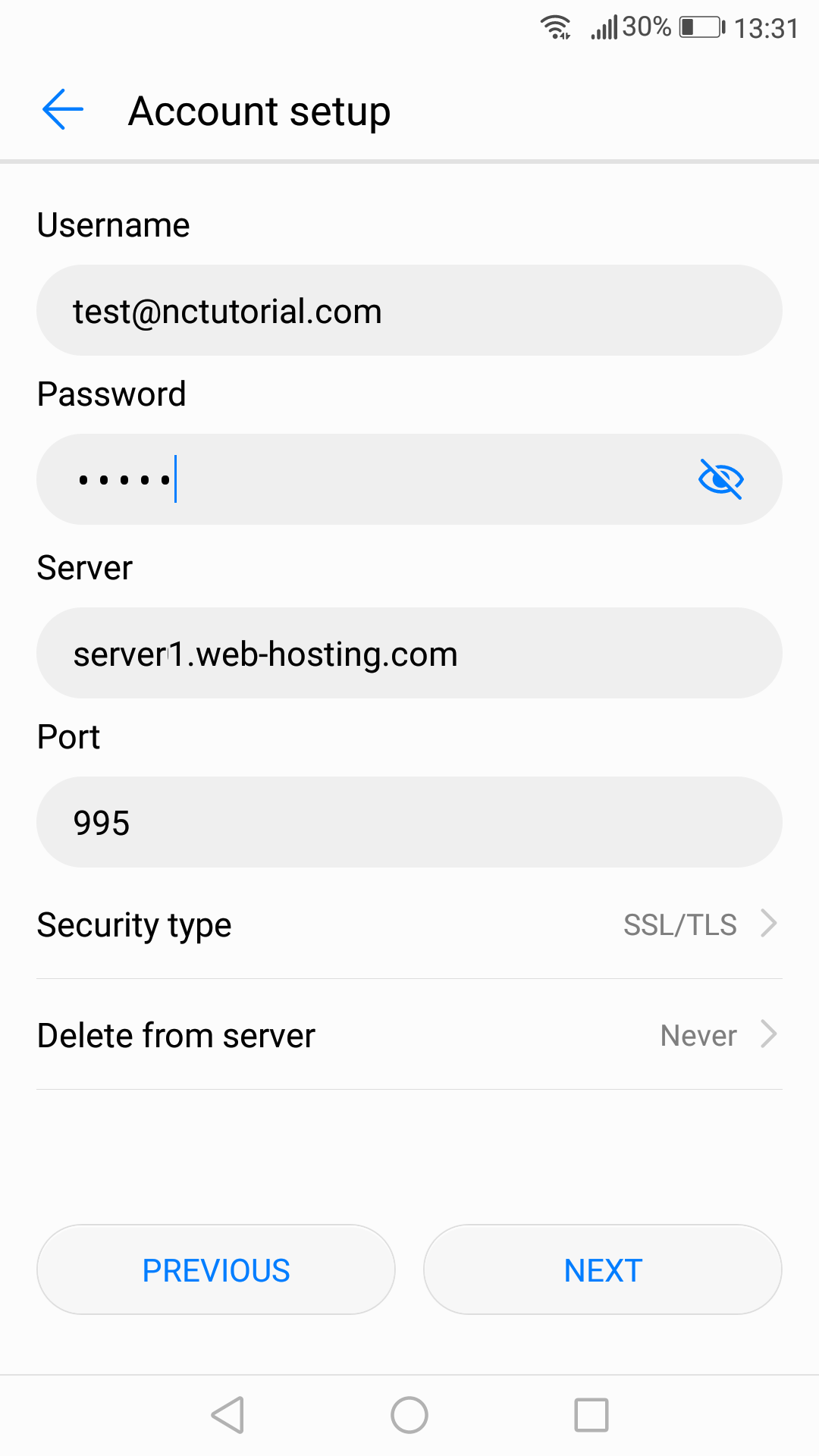
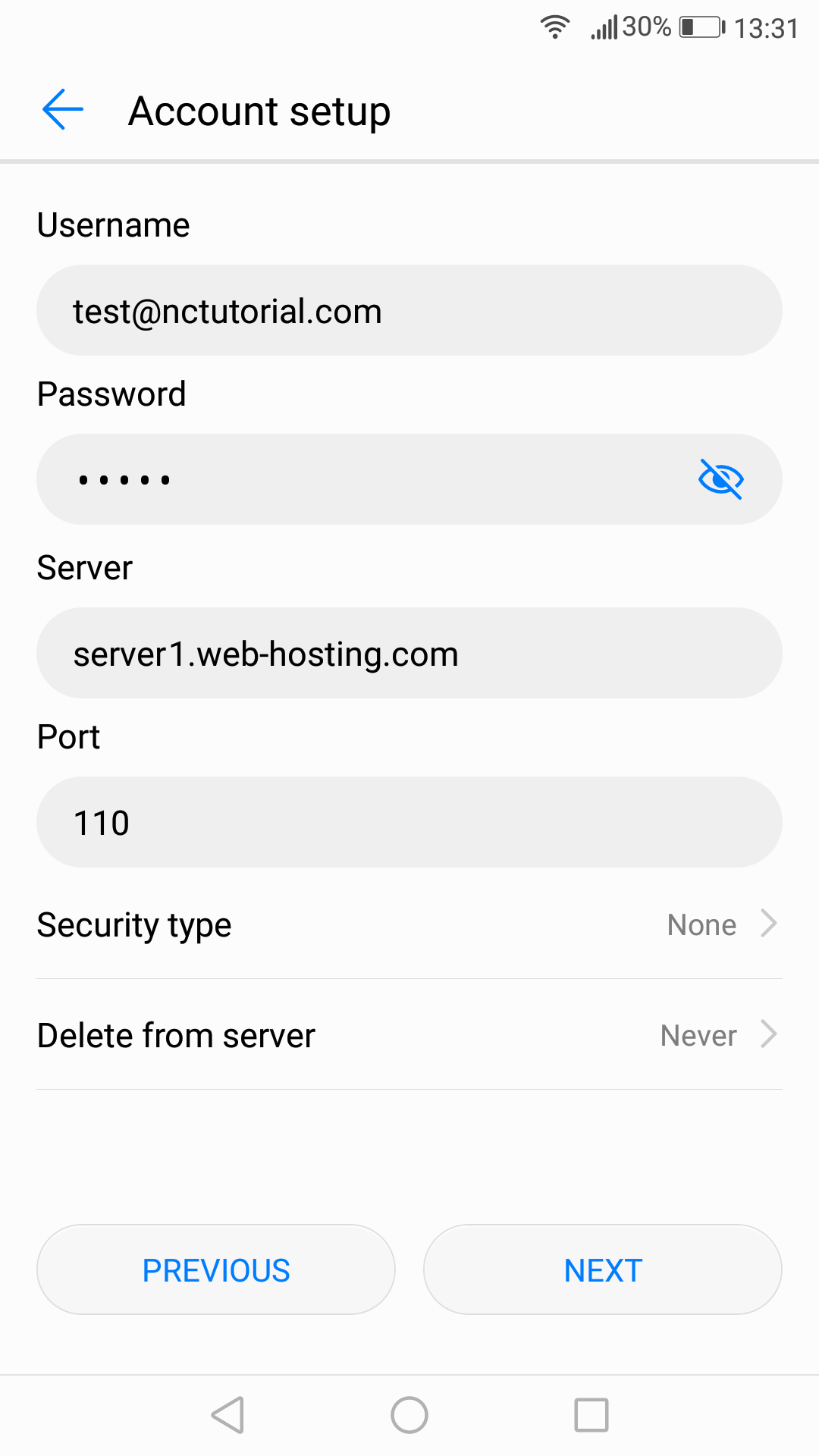
5. If you choose POP3 protocol, you will need to indicate the following fields:
- Email address, username, and password should have been already filled in the corresponding fields.
- Server: server your account is hosted on
If you want to use a Secure Sockets Layer connection:
- Port: 995
- Security Type: SSL/TLS
If you do not want to use a Secure Sockets Layer connection:
- Port: 110
- Security type: None
Click on Next.
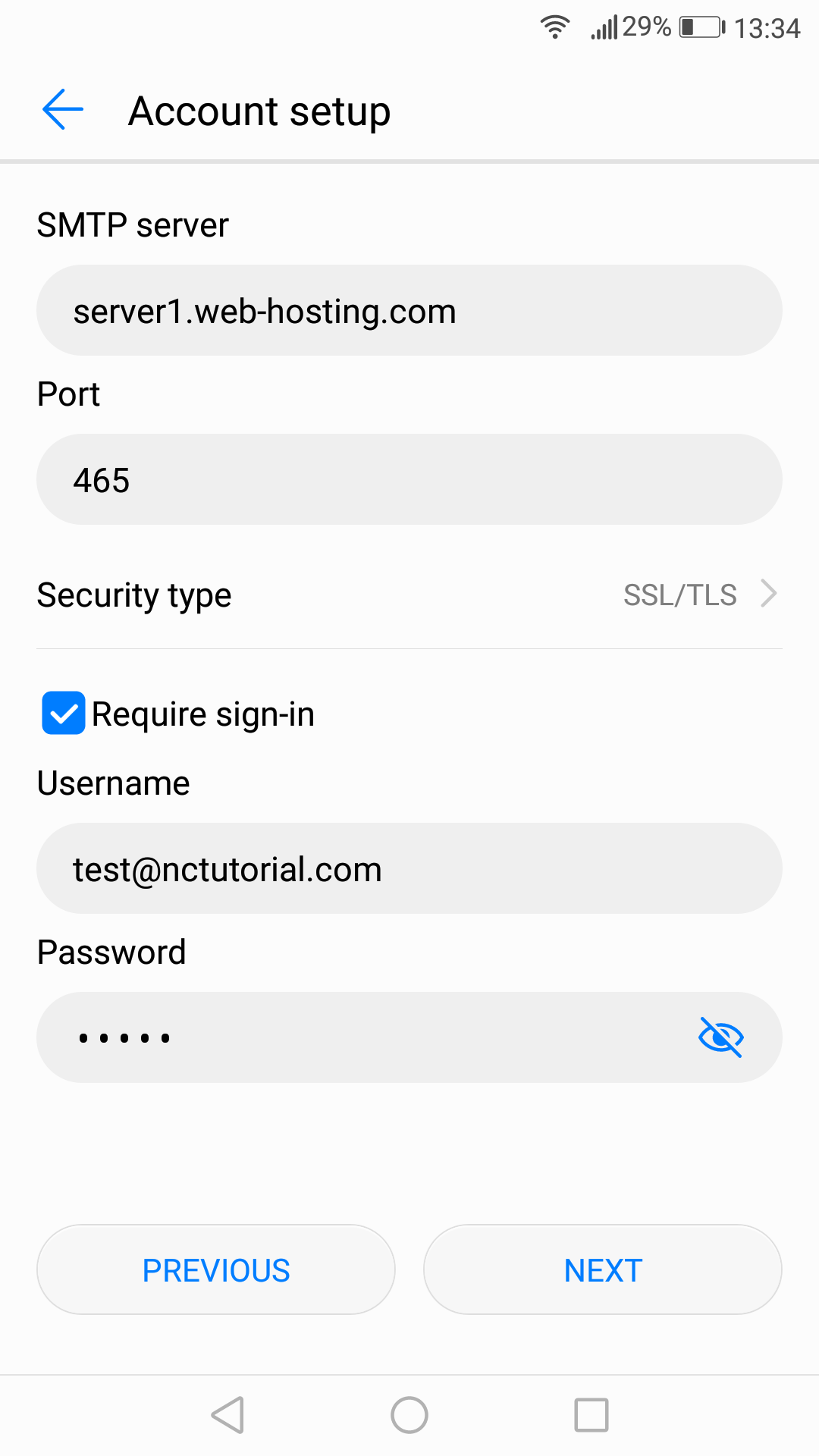
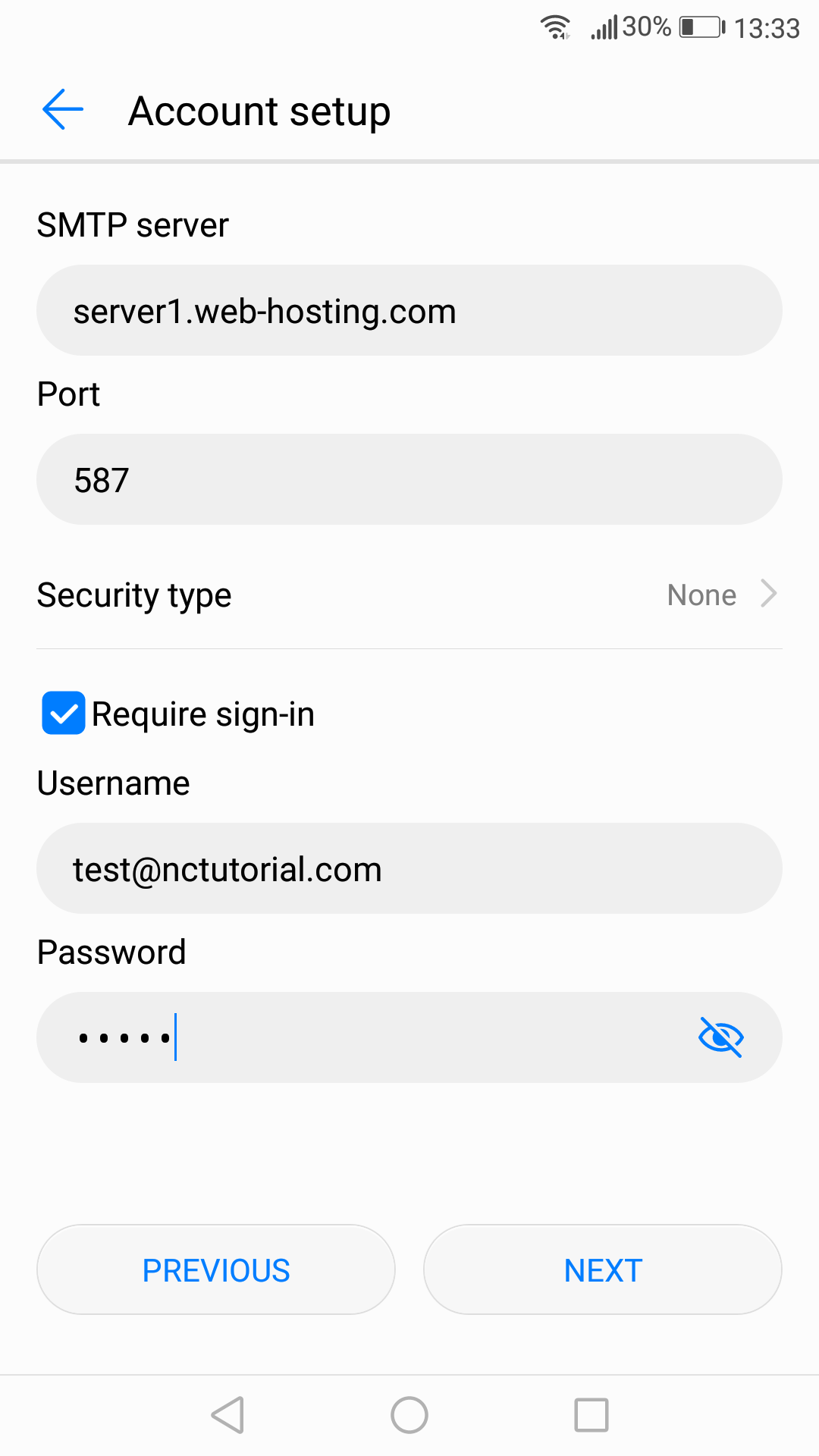
6. Enter the Outgoing Server Settings in the following way:
- Email address, username, and password should have been already filled in the corresponding fields.
- SMTP server: server your account is hosted on
- Require sign-in should be checked
If you want to use a Secure Sockets Layer connection you need to use
- Port:465
- Security type: SSL/TLS
If you do not want to use Secure Sockets Layer use
- Port:587
- Security type: None
7. Click Next to finish the setup
